Configuration
Where Hugin keeps its config and data, the settings that matter, HTTP/3, and the Logs panel for when something misbehaves.
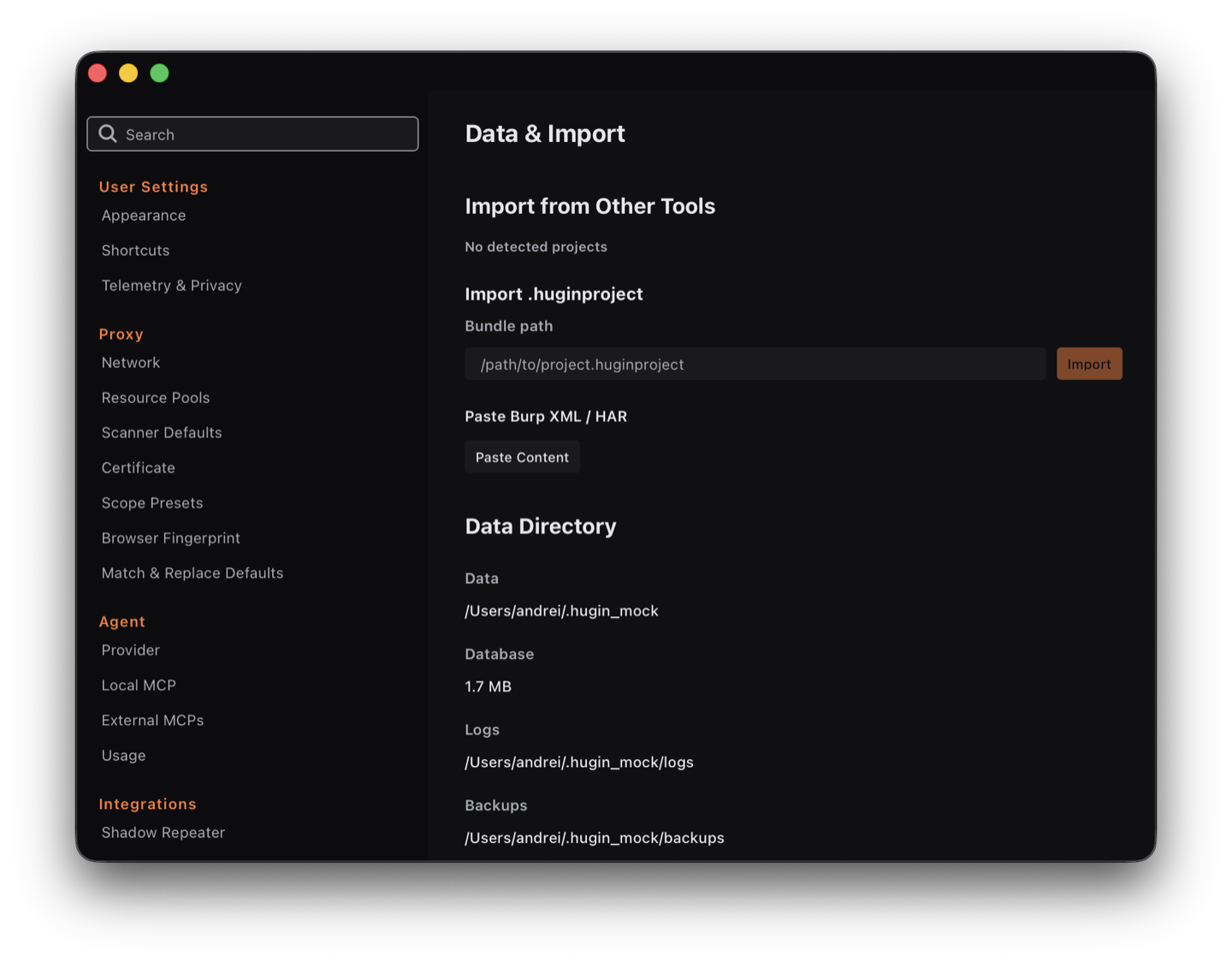
Hugin reads a TOML config from ~/.hugin/config.toml and keeps its data under
~/.hugin/. Point the whole directory elsewhere with the HUGIN_HOME environment
variable.
The config command
hugin config show              # print the config path + a summary of settings
hugin config telemetry off     # toggle telemetry (on|off)
There is no config set — for anything other than telemetry, edit
~/.hugin/config.toml directly.
Settings that matter
[proxy]—listen_addr(default127.0.0.1:8080),api_addr(127.0.0.1:8081),upstream_proxy,invisible_proxy, andadditional_listeners(e.g.0.0.0.0:8082to reach the proxy from a phone or another host). Listeners are also managed from the UI — click the proxy pill in the header (see intercepting traffic).[storage]—db_path(~/.hugin/hugin.db) andmax_body_size(10 MB).[ca]— the CA certificate and key paths.[http2]—enabled(true) and the ALPN list.[timeouts]— request (30s), DNS, keep-alive, response-header.
Turning on HTTP/3
HTTP/3 is compiled in but off by default. Enable it in the config (there is no CLI flag):
[proxy]
h3_enabled = true
# h3_listen_addr = "127.0.0.1:443"   # optional; defaults to the listen IP on UDP 443
hugin config show then prints the resolved HTTP/3 listen address. See
protocols for what HTTP/3 capture covers.
Logs
When a tool misbehaves — a scan that finds nothing, a request that never fires, a proxy that won't bind — the Logs panel shows what Hugin actually did. Open it from the Logs button in the status bar; it slides up from the bottom.
Hit Record, reproduce the action, then read the capture. While recording,
Hugin logs at debug level, so you see the full detail of each step instead of
just the headline. Save writes the capture to a file you can attach to a bug
report, Clear empties the view, and everything also streams to
~/.hugin/hugin.log.
Themes
Hugin ships 6 themes — 3 dark (Wave, the default cool steel; Dragon, warm charcoal; Abyss, deep blue-black) and 3 light (Lotus, Paper, Frost). Pick one from the swatch cards under Settings → Appearance; the choice applies immediately and persists across restarts.
Intercept and match-and-replace rules are not in config.toml — they live as
separate JSON files under ~/.hugin/ and are edited from the UI. The TOML file is
for ports, storage, TLS, and protocol settings.