WS History
See every WebSocket frame your target's page sends and receives — filter, search, and send a captured frame to WS Client or its upgrade to Repeater.
Hugin captures both directions of every WebSocket the target's page opens through the Proxy, frame by frame. WS History is where you read that traffic — the live messages a chat, a trading feed, a notification channel, or a GraphQL subscription is exchanging right now — then pull any frame into a tool to tamper with it. It is part of the always-on Proxy, so it is Community (free). WS Client is the other half: a Pro tool for opening your own socket and crafting frames from scratch.
How upgrades get captured
You do not arm anything. Browse the target through the Proxy, and the moment a page
upgrades a request to a WebSocket (the HTTP 101 handshake), Hugin records the
connection and starts logging frames in both directions. A wss:// socket rides
the same TLS interception as HTTPS, so once Hugin's CA is trusted you capture
encrypted sockets too. One scope rule covers a page and its
socket together — protocol:https matches wss, protocol:http matches ws — so
they land in History or drop from it as a pair.
Read the connections and their frames
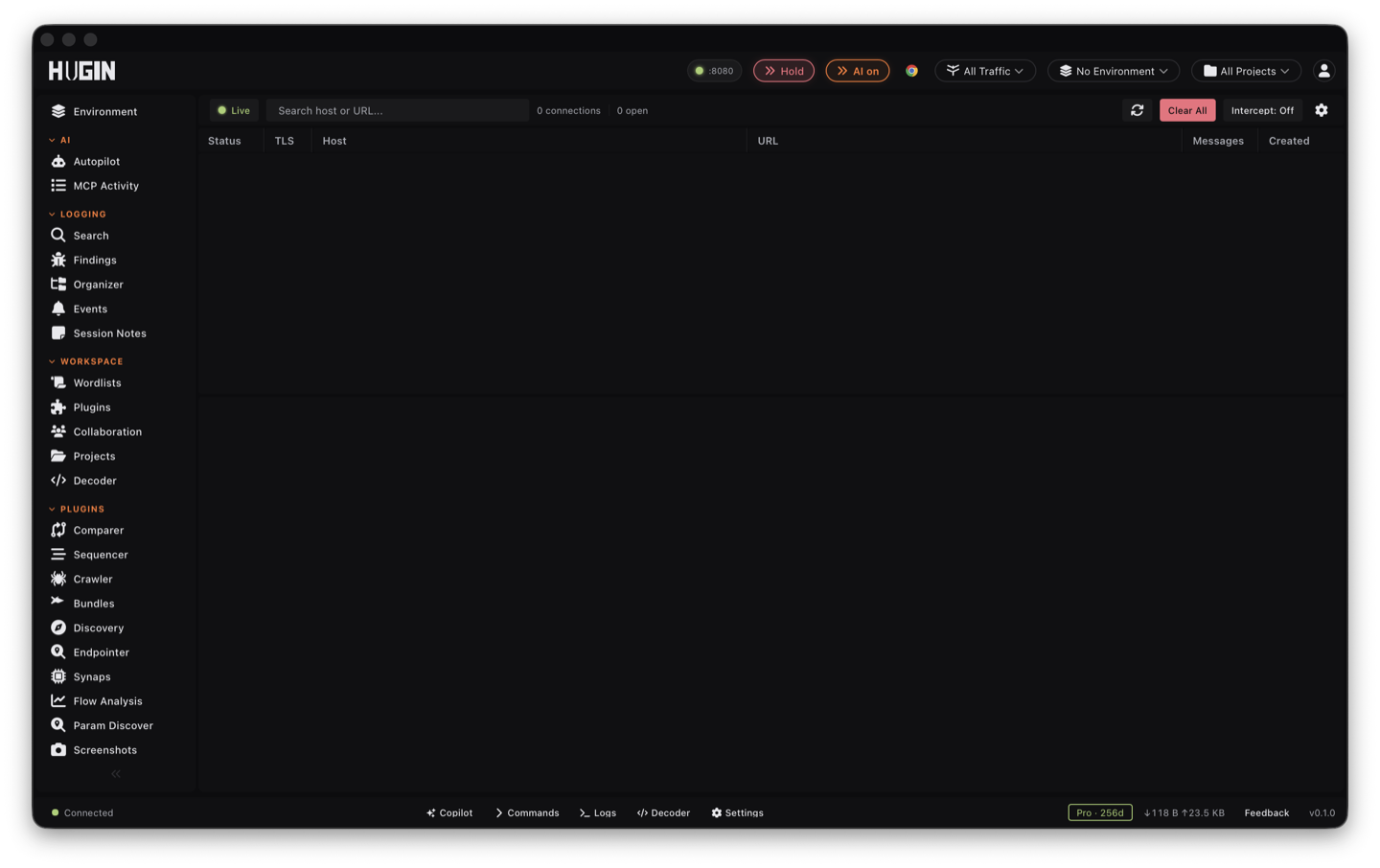
The connection list is one row per socket: Status (Open or Closed), TLS, Host, URL, Messages (the frame count), and Created. Select a row to open its frame log.
Each frame shows its direction (client → server, server → client), opcode, time, size, and payload. Opcodes are the five WebSocket types — Text, Binary, Ping, Pong, and Close. Read any payload three ways with the tabs above the detail pane: Pretty (formatted JSON), Raw, or Hex — reach for Hex on the binary protocols (protobuf, MessagePack) that Pretty cannot format.
Filter and search the frames
Search the connection list by host or URL to find the socket you want. Inside a connection, three controls cut the frame log down to what matters:
Match a substring against frame payloads. The header shows matched / total, so you see at a glance how much of the stream carries your term.
Show only client → server or only server → client — isolate what you send from what the server pushes back.
Toggle Text, Binary, Ping/Pong, and Close on or off. Drop Ping/Pong and the heartbeat noise collapses, leaving only the frames that carry data.
Pivot a captured frame
Capture tells you the message format; the next move is to bend it. Right-click any frame:
Opens WS Client pre-loaded with the connection's URL and this frame's payload and opcode, ready to replay, mutate, or fuzz against a fresh socket you control. The fast path from "the server sent something interesting" to a full craft session.
Load the frame's opcode and payload into this view's Send panel, change it, and fire it straight back into the live connection.
Copy Payload, Copy as Hex, Copy Pretty JSON, or Copy as WS Send (a wscat-style command for your notes). Add a comment or one of 8 highlight colors to flag the frames worth coming back to.
Replay or fuzz the upgrade
A single frame replays in WS Client, but the upgrade request is plain HTTP, so it goes to the HTTP tools. Right-click a connection:
Drop the HTTP 101 handshake into Repeater and replay it by hand. Strip or forge the Origin header to test for Cross-Site WebSocket Hijacking (CSWSH), drop the session cookie to see whether the upgrade authenticates at all, or change the requested subprotocol.
Fuzz the handshake with Intruder — walk an Origin list, a token list, or a subprotocol set across the upgrade and read the responses side by side.
Jump to the upgrade flow in History to read the request and response that opened the socket.
Add the host to scope or exclude it, export every frame on the connection as JSON for your report or a script, or delete the connection.
Tamper a live frame
The Send panel injects a new frame straight into a live captured connection — pick Text, Binary, Ping, Pong, or Close and send. With Edit & Resend, that is enough to poke a running socket without leaving WS History. To hold frames mid-flight and forward, edit, or drop each one before it passes, turn on Intercept WebSockets in Intercept.
Findings Hugin pulls from frames
Capturing a stream is not idle watching — Hugin reads every Text and Close frame as it arrives and files what looks like a leak straight into the Findings tab, with the connection and frame attached:
A JSON Web Token (JWT) or an Authorization: Bearer value riding inside a frame is
flagged High. Session material on the socket can be stolen through the same
interception path that just read it here.
A "password" field carrying a non-empty value is flagged Critical.
Binary, Ping, and Pong frames are skipped — the checks are text-based, and binary blobs only produce noise — and each issue is reported once per connection, so a chatty socket never buries the tab in duplicates.
The upgrade handshake gets the active treatment too. Point the Scanner at the target and its WebSocket check probes the HTTP 101 for Cross-Site WebSocket Hijacking (missing Origin validation), message injection, and protocol confusion.
Craft from scratch with WS Client (Pro)
Watching, filtering, and inspecting captured frames is part of the Proxy — Community, free, always on. Opening your own outbound WebSocket to craft, replay, and fuzz frames from scratch, including raw frames with arbitrary opcodes, is the WS Client, a Pro tool. Capture first, craft second: learn the message format here, then send a frame across to start tampering from a known-good message.