WS Client
Open your own outbound WebSocket, then craft, replay, and fuzz frames — including raw frames with arbitrary opcodes. (Pro)
WS History shows you the frames a target's page already sent. WS Client is the other half: you open the WebSocket yourself and drive it — craft frames, replay them, fuzz them, and hold the send queue to tamper before a frame leaves. You can also route the socket back through your own Proxy, so your Match & Replace rules, scope, and the Scanner apply to every crafted frame. It's a Pro tool, separate from the always-on capture view.
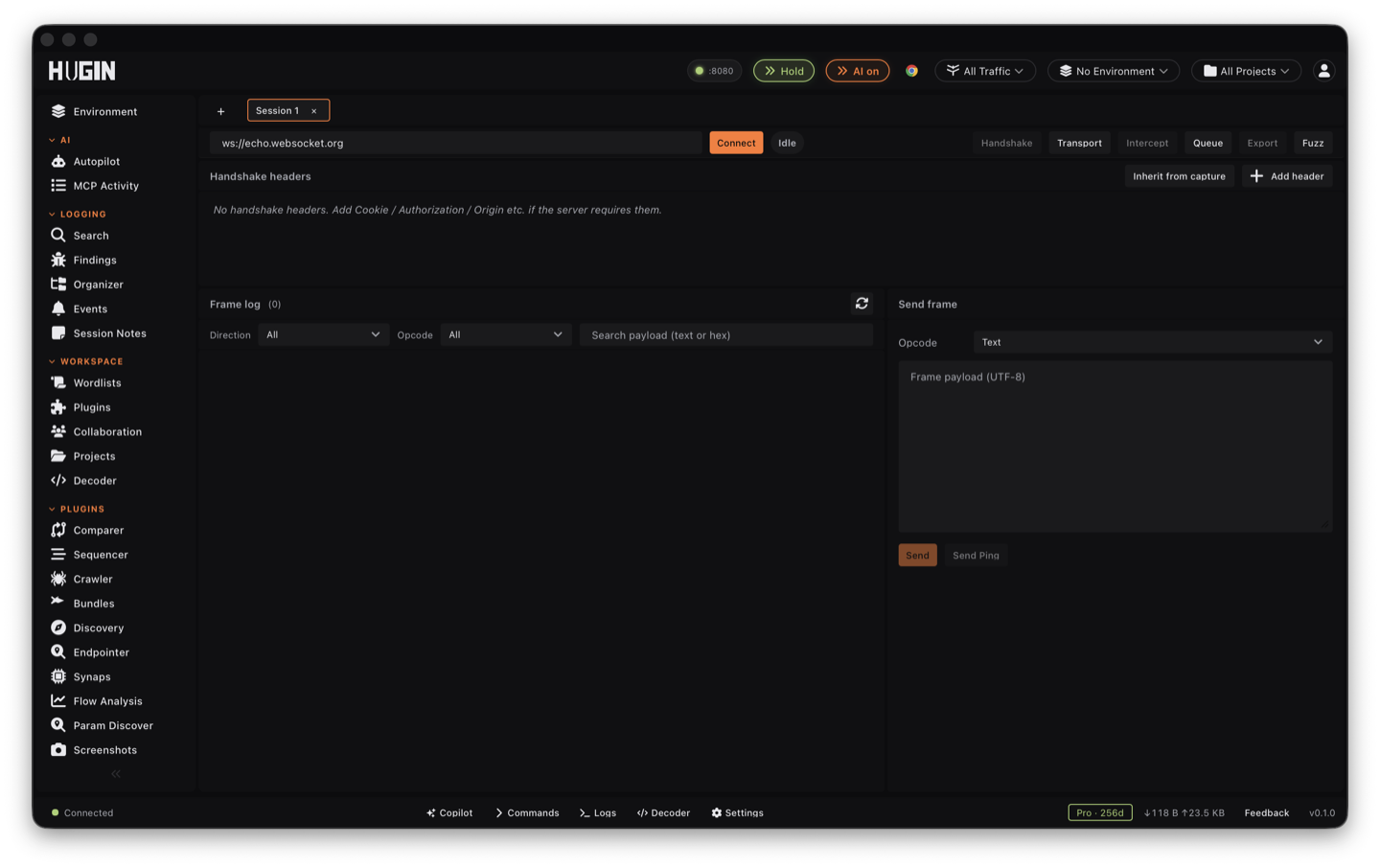
Open a connection
Each tab is one connection — URL, handshake headers, transport options, and a fuzz config — so you can keep several targets side by side and reopen them later.
Set the handshake
Enter the URL (
wss://target/liveorws://127.0.0.1:8080/chat) and add any handshake headers you need —Authorization,Cookie,Origin, a custom subprotocol.Connect
Click Connect. Frames stream into the log as they arrive, and a status pill tracks the socket: Connecting, Open, Closed, or Error. Disconnect tears the session down; Reconnect re-opens a dropped one. To send a protocol Close frame with a specific code and reason, use the Send pane's Close opcode.
Clone a real session into your socket
Servers gate WebSocket upgrades behind the same Cookie and Authorization the
page already holds. Rather than copy them by hand, set the URL, then click
Inherit from capture in the handshake-headers panel. Hugin finds the most
recent captured WebSocket upgrade to that host and merges its handshake headers
into yours, so your crafted socket carries the live session's auth. If Hugin hasn't
seen an upgrade to that host yet, it says so — browse the target through the Proxy
first, then inherit.
Tune the transport
Open Transport in the toolbar to control how the socket is dialed. Changes apply on the next Connect — the pane is read-only while a session is live — and the button warns whenever any option diverges from the secure default.
Point Route through HTTP proxy at a running Hugin Proxy (127.0.0.1:8080) and
the crafted frames travel the full interceptor chain: your Match &
Replace and session rules rewrite them in flight,
scope filters them, and they land in capture and the
Scanner like any other traffic. Any upstream HTTP proxy
works too — add a Proxy-Authorization value (Basic …, Bearer …) when it
needs auth.
Paste a client certificate and private key (PEM) to reach mutual-TLS
targets — supply both, or Connect rejects the half-configured pair. Pin TLS
version min/max to 1.2 or 1.3 to force a version, and set an SNI override
to pull a different certificate off a shared IP.
Set ALPN protocols (http/1.1, h2, or empty for none) and choose the HTTP
version carrying the handshake: HTTP/1.1 (RFC 6455) or HTTP/2 extended CONNECT
(RFC 8441), to test WebSocket-over-h2 paths. HTTP/3 is listed but unavailable.
Accept invalid TLS certs to talk to a lab target with a broken chain — a banner warns while it's on, and it's lab-only — or offer permessage-deflate (RFC 7692) to reach compression-only servers and exercise the RSV1 / compression path.
The client certificate, private key, and Proxy-Authorization fields each have a
Seal button. Sealing moves the value into your OS keyring and replaces the
field with a keyring:// reference, so the saved workspace file never carries the
plaintext. Sealed fields show a lock; Hugin resolves the real value at Connect.
Read the handshake response
Once the upgrade completes, the Handshake toolbar button lights up. Open it to see what the server actually negotiated, not just what you offered: the HTTP status line, Sec-WebSocket-Protocol (the subprotocol it picked), Sec-WebSocket- Extensions (for example the agreed permessage-deflate parameters), every response header, and the response body. If a subprotocol or compression you offered is missing here, the server declined it.
Read the frames
The frame log lists each frame by direction (client→server ↑ / server→client ↓), opcode (Text, Binary, Ping, Pong, Close), sequence number, time, size, and payload. Click a frame to expand a hex-and-ASCII view of its payload. The log renders the latest 500 frames; older ones collapse behind a banner so a chatty socket stays readable.
Filter the log by direction, opcode, and a payload search box. Search
matches text for Text and Close frames and hex for binary frames, so pasting de ad be ef finds deadbeef. The count shows matched / total.
Every frame row carries Replay (re-send it verbatim) and Edit (load its opcode and payload into the Send pane to mutate, then send). Edit is the fast path from "the server sent something interesting" to "now I tamper with it."
Don't lose frames silently
A busy socket can outrun both the backend buffer and the UI. Three indicators tell you when frames went missing — watch them, because nothing else will.
The session keeps the last 10,000 frames; older ones are evicted, and a banner reports how many. Export the log while you're still connected to keep the full stream.
If the UI fell behind a hot socket, a banner reports how many frames were dropped before it caught up and the first sequence number still available.
An N dropped pill in the toolbar means outbound frames couldn't be pushed — the server is slow, or the intercept queue is holding them. The send never left the client, and this pill is the only signal.
Send and tamper
The Send panel injects a frame into the live connection. Pick the opcode — Text, Binary, Ping, Pong, or Close. Set the opcode to Binary, Ping, or Pong and an encoding toggle appears:
Send a UTF-8 string as-is — the common case for JSON or text protocols. The Text opcode is always UTF-8.
Type the payload as hex (even nibbles; 0x prefix and separators tolerated) or
base64. Invalid input is rejected before send, not silently mangled.
Build a frame byte by byte: tick FIN / RSV1 / RSV2 / RSV3 and set
the opcode byte (0x0 continuation, 0x1 text, 0x8 close, 0x9 ping, 0xA
pong) to test how the server handles malformed, reserved, or fragmented frames.
A Close opcode exposes dedicated code and reason fields. Send Ping fires an empty ping for a liveness check, and for binary-like opcodes Load file reads a file's bytes straight into the payload as hex — throw a binary blob as one frame without leaving the tool.
Turn on Intercept to hold both inbound and outbound frames in a queue and forward, drop, or edit each one before it moves — the same hold-and-tamper loop as the Proxy, but for the frames on this socket. Forward all and Drop all clear the queue in one click.
Export the session
Export writes the session's frames as NDJSON — one JSON object per line, ready to diff, grep, or feed to a script. It's the durable copy of a stream the backend will eventually evict, so export long or high-volume sessions before you close them.
Fuzz a frame
Fuzz drives the Intruder engine against a single
frame, so you fuzz a message the same way you fuzz a request. Write a base
template — the JSON or text of the frame — and wrap each spot you want to vary in
§marker§ pairs. Add one or more payload sets (the same 21 generators as
Intruder, from simple lists to brute-force charsets and havoc mutation), pick an
attack mode (sniper, battering ram, pitchfork, cluster bomb), and Start. A run
needs a live connection, at least one §marker§, and one payload set.
Pace the run with Throttle (ms between sends) and Window (ms to wait for replies after each send) to match a server that answers slowly or rate-limits. Add Grep match patterns (one per line) to flag responses and Grep extract regexes to pull a value out of each reply.
Results stream into a table — payload, what came back, whether a match hit, and any extracted value — refreshing as the run proceeds. A status pill tracks Pending → Running n/total → Done, and you can Pause, Resume, or Cancel mid-run. Use it to walk an ID through a subscribe message, or to throw a payload list at a command field carried over the socket.
Capture first, craft second. Watch a real session in WS History to learn the message format, then right-click a frame to send it here and start tampering from a known-good message.