Projects
Isolate each engagement — flows, scope, findings, and rules — in its own project, switch between them without bleed, and export any project as a portable .huginproject file.
A project is one engagement, walled off from the rest. Each project keeps its own flows, scope, findings, rules, and replay data, so two clients never share a workspace and last week's target never bleeds into this week's. Switch projects and the whole tool follows.
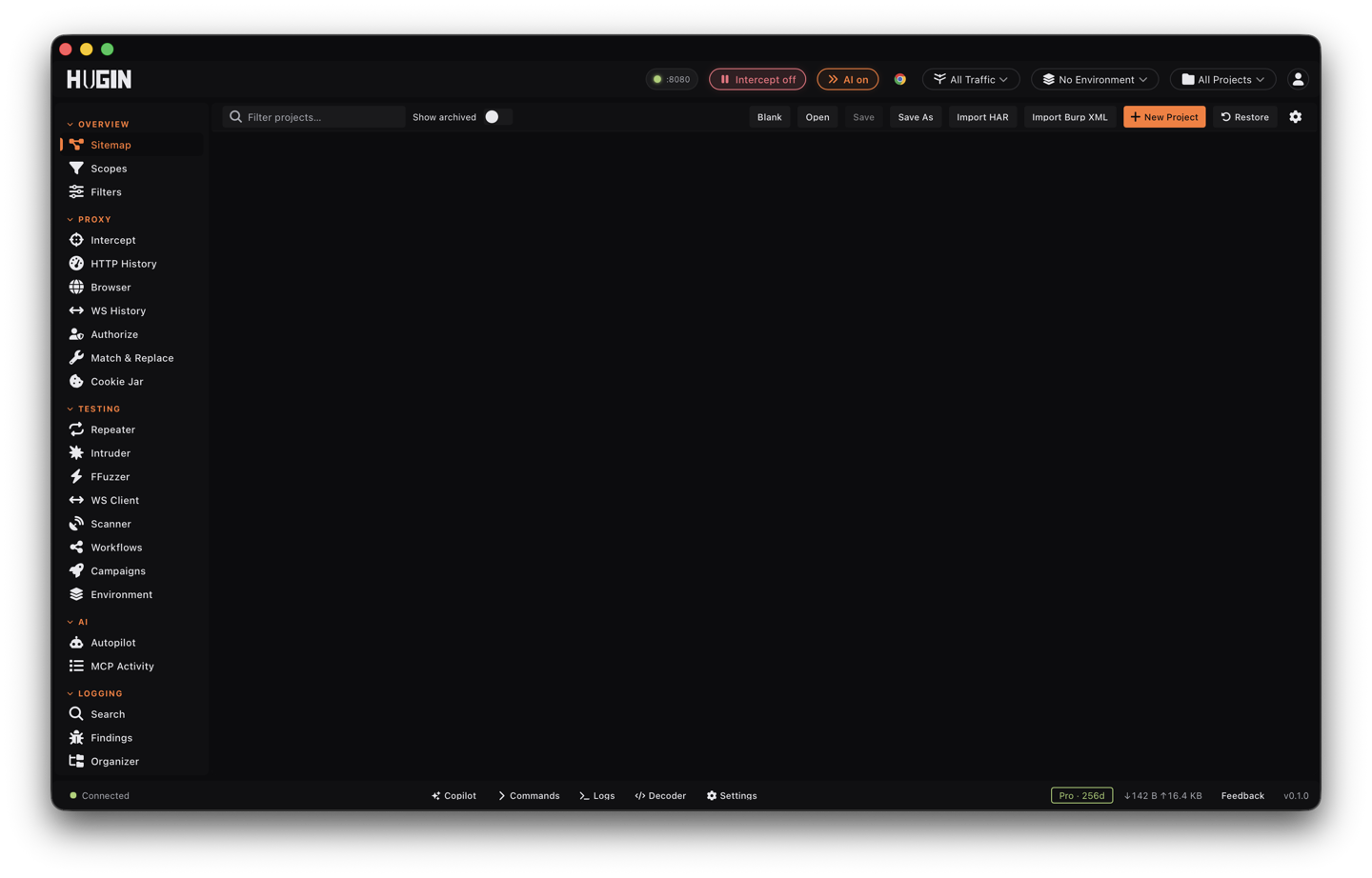
What a project keeps to itself
Everything you capture and build during an engagement is scoped to the active project:
- HTTP History — every flow the Proxy recorded for this target.
- Scope — the project's own include/exclude lists and capture mode.
- Findings — scanner and access-control findings.
- Rules — intercept and match-and-replace rules, with their groups.
- Repeater — the tab queue and the full send history.
- Intruder campaigns — saved attacks and their results.
- Organizer items — the requests you bookmarked and triaged.
- WebSocket — captured connections and their messages.
- Cookies — the project's cookie jar and saved cookie sessions (the identity-swap sets).
A project also carries the engagement profile: platform, program URL and policy, notes, tags, a bounty table, response SLA, known exclusions, fingerprinted tech, pinned wordlists, a per-project User-Agent, and auth tokens. Set it once and the context travels with the project.
Switch projects without bleed
Switching is the clean seam between engagements. When you activate a project, Hugin first tears down every job still running under the project you are leaving, so nothing from the old target can land in the new one's workspace:
- Scanner, Intruder, RatRace, Sequencer, and FFuzzer attacks are stopped.
- Crawls stop, the intercept queue drops, and workflows are canceled.
- Repeater streams and in-flight sends are canceled.
- Oastify out-of-band (OOB) slots reset, and WebSocket Client sessions that don't belong to the new project disconnect.
Then it loads the new project's scope, rules, and custom User-Agent. A fuzz attack you forgot to stop on Client A cannot keep firing hits into Client B.
Create, switch, and manage projects
The project dropdown in the header is where you create, switch, and seed workspaces. The Projects view holds the full list for renaming, archiving, exporting, and deleting.
Create the project
Open the project dropdown and choose New Project. The first project is free; each additional one needs Pro.
Name it and set scope
Name it for the target and set its scope, platform, and notes now, or fill them in later from the Projects view.
Start hunting
Browse the target. Every flow, finding, and Repeater tab now belongs to this project and survives switching away and back.
Pick another project from the header dropdown. Switching between projects you already own is never gated — your data is yours regardless of license.
Change the name and the rest of the profile — scope, notes, tags, pinned wordlists, User-Agent — from the Projects view at any time.
Park a finished engagement without deleting it. Archived projects drop out of the switch list; restore one before you can activate it again.
Remove a project and its data for good. If it's the active project, Hugin tears down its in-flight jobs first, the same as a switch.
Try it with an example workspace
The project dropdown has a + Example workspace action. It creates a project seeded with 10 sample flows, switches you to it, and the flows land in History right away — a safe sandbox for learning the tools before you point them at a real target. The seeded flows belong to that project, so they survive switching away and back. Seeding counts as a project, so on Community it's available when you don't already have one.
Export and import a .huginproject
Export writes the whole project to a single .huginproject file — JSON,
self-contained, and portable. Archive a closed engagement, move it to another
machine, or hand it to a teammate for collaboration.
Import a .huginproject (or plain .json) to restore the entire workspace;
import skips duplicates, so re-importing is safe. You can also pull flows in from
HAR and Burp XML.
Export is safe to share by default:
- Include cookies is off — the cookie jar and saved sessions are dropped.
- Redact headers is on —
Authorization,Cookie,Set-Cookie,X-API-Key,X-Auth-Token,X-CSRF-Token, andProxy-Authorizationvalues are rewritten to[REDACTED]across every flow and Repeater entry.
Turn cookies on only for a private round-trip back to your own machine.
A shared export scrubs credentials by default, but check the file before you send
it if the engagement is sensitive. A .huginproject written by a newer Hugin
won't open in an older build — upgrade to read it.
Tier
The first project is free on Community. Working with multiple named projects is a Pro feature (Multi-Project Workspace). Switching between projects you already own is always allowed.
One project per target keeps scope, findings, and rules clean, and switching is safe because Hugin stops the outgoing project's in-flight work before the new one takes over.