Intercepting traffic
Record traffic into History, or hold requests and responses to edit them before they pass.
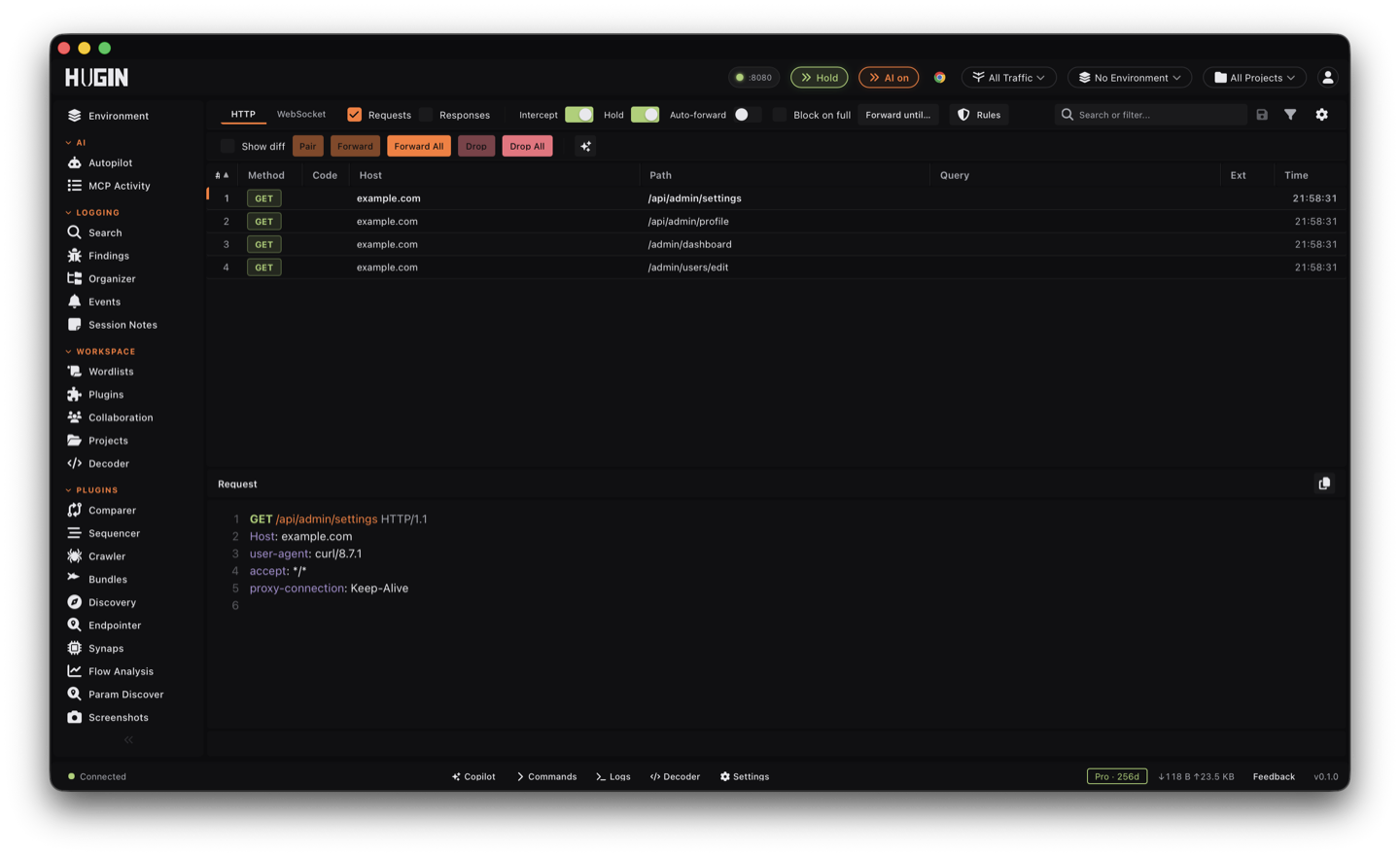
The Proxy has two states, controlled by two toggles in the Intercept view: Intercept (the master switch, off by default) and Hold.
- Intercept on, Hold off — observe mode. Traffic passes straight through and is captured into History; recent requests also collect in a non-blocking list.
- Intercept on, Hold on — blocking mode. Each request pauses in the queue and waits for your decision before it reaches the server.
Intercept is part of Community — the queue, response editing, the queue controls, and intercept rules all ship free.
Turn it on
A pill in the top header is the fastest switch. It reads Intercept off until you
click it, then Intercept ON, and Hold once you also turn Hold on. Ctrl+Space
(or Ctrl+P) toggles the master switch from anywhere in the app, so you can arm
Intercept without leaving the page you are on. This pill is separate from the
proxy-health pill described under Listeners below — one tells you whether
interception is armed, the other whether the listener is up.
Acting on a held request
When a request is held you can:
Send it on as-is, or edit it first in the request editor and forward the modified version. The edited bytes are what the server receives.
Kill the request so it never reaches the server.
Clear the whole queue at once when you are done stepping through.
Forward and Drop have keyboard shortcuts — Ctrl+; forwards the selected request,
Ctrl+D drops it — so you can step through a queue without reaching for the mouse.
There is also a step-through "forward until" that releases requests until one matches a URL / method / host / status / header / body substring, and an AI Modify action that rewrites the held request for you.
Pivot from a held request
Right-click any row in the queue to send the flow somewhere it does more work:
Push the flow to Repeater (Cmd+R), Intruder (Cmd+I), Scanner,
Comparer, or Sequencer — the same request you are holding, ready to replay,
fuzz, scan, diff, or token-test.
Hand the held flow to the AI agent to triage it, surface the interesting parameters, and suggest the next request.
Add the host to scope or exclude it, color-highlight the
flow, or delete it (Del) — without forwarding first.
When you hold both a request and its response, the Pair button lines them up by flow and Show diff renders your edits against the original bytes, so you see exactly what you changed before you forward.
Requests, responses, and WebSockets
Holding requests and holding responses are separate toggles — turn on Intercept Responses to pause responses on the way back. Intercept WebSockets is its own toggle for WS frames. Pick only the directions you need.
With a response held you can rewrite the raw bytes before the browser ever sees them — the modified response is what renders. That turns the Proxy into a way to forge a client-side bug on demand:
Flip a 403 or 302 to 200 to see whether the client reveals UI it should have
hidden. Edit a JSON field like "isAdmin":false to true and watch what the front
end trusts. Inject a payload into a reflected value to reach a DOM XSS sink. Strip a
Content-Security-Policy or X-Frame-Options header to confirm what it was holding
back.
Forward, drop, forward-all, and drop-all work on the response queue exactly as they do on requests.
Leave Hold on and the target appears to hang — every request is waiting on you. Turn Hold off once you have what you want, or use a targeted match and replace rule with the Intercept action instead of holding everything.
Managing the queue
Hold catches everything in scope, which piles up fast. A few controls keep the queue honest and your browser responsive:
Turn on Auto-forward and anything sitting longer than 30 seconds is released on its own (1 to 3600 seconds). Switch the sweep to drop instead of forward when you would rather fail closed than leak a request you walked away from.
The queue caps at 200 held requests (and 200 responses). By default the oldest held request is auto-forwarded to make room. Tick Block on full and the held queue stays intact — new traffic passes through unpaused instead of evicting your oldest catch. At 80 % full a banner warns you the queue is backing up.
A badge counts anything the queue forwarded or evicted on its own — overflow releases and dropped captures (the observe list keeps the last 500). Turning Intercept or Hold off forwards every parked request so the browser never hangs. The counter means your evidence trail shows what actually reached the target.
Audit-only and per-host hold
Two modes let you aim Hold without freezing the whole target:
Capture what Hold would have caught without ever blocking. Run it to preview a scope live — the matching requests show up in the list while traffic keeps flowing — then flip the real block on once the scope looks right.
Pin one or more hosts so only those auto-hold, even with global Hold off. Everything else streams straight through while just your target pauses for review.
Intercept rules
The Rules button opens a rules engine that decides what happens to a flow before it ever reaches the queue. The proxy runs your rules in priority order and the first match wins.
Build conditions on host, path, URL, method, status code, any header, cookie, query parameter, content-type, content-length, or the request/response body — or drop in a Bambda script for logic the fields cannot express. Combine conditions with ALL or ANY, and negate any single one with NOT.
Forward, drop, queue for manual review, or flag the flow with a color and a note. Apply the rule to requests, responses, or both.
Rewrite the path, method, host, status code, any header, cookie, or query parameter, or the body — set, remove, replace (plain or regex), append, prepend, or run a script. This is how you keep a header injected or a parameter rewritten across every request without holding a single one by hand.
Order rules by priority with the up/down controls — the first match wins — and group them into named profiles you can filter the list by. For a single find-and-swap on every request, the lighter match and replace rule does the same job with less setup.
Filtering the queue
A filter bar sits above the queue. Type plain text to live-filter the rows by any visible field, or use HTTPQL to filter on structure — method, host, status code, content-type, and more. It narrows both the held queue and the observe list, so a noisy capture session collapses to just the requests worth your attention.
Listeners — the proxy pill
The pill at the right of the header shows the proxy port with a green dot when the listener accepts connections and a red dot when it is down — checked every 3 seconds, so a dead proxy is visible before your browser starts throwing connection errors.
Click the pill to open the Proxy servers dialog and manage listeners without
touching config.toml:
Repoint the primary
The primary listener sits first, tagged
primary. Click the edit icon to change itsaddress:port— move it off8080, or bind it on0.0.0.0to reach the proxy from another host. The primary can't be removed (the proxy has to listen somewhere), but you can point it anywhere.Add another listener
Type an
address:port, or use the presets — This machine fills in a127.0.0.1port for a second local listener, Other devices fills in0.0.0.0so a phone or VM on your network can route through Hugin. Click Add. Remove an extra listener with the trash icon.Restart to bind
Added, repointed, and removed listeners are written to the config and bind on the next restart — the dialog reminds you.
Binding on 0.0.0.0 or a LAN address — the primary or an extra listener — opens
your captured target traffic to anything that can reach that interface. Do it
only on a network you trust.
Intercepting a phone still needs the CA on the device — see CA certificate.
Keep it focused
Set your scope to the target so History and the tools you drive from it ignore third parties and noise.