Screenshots
Capture report-ready proof — a target page at any viewport, or the Hugin window itself — and keep it in a gallery with side-by-side compare.
A finding with a screenshot gets paid; a finding without one is an argument. The Screenshot tool grabs the proof and files it per hunt, so report day doesn't open with a folder full of Screenshot 2026-06-17 at 03.14.07.png.
Capture a target page
The Capture tab opens in page mode. Enter the Target URL, pick a viewport, set a wait, and shoot. The page renders through your live browser session, so you capture exactly what the target serves you — including the logged-in, JavaScript-built state. Your session cookies ride along, so an authenticated page comes out authenticated.
One URL per shot, captured at the viewport you set — not a full-page scroll. Page capture drives a browser session, so it needs Pro: launch one from Browser automation first.
There are 6 device presets, each carrying the matching user agent:
- Desktop — 1920x1080
- Laptop — 1366x768
- iPhone 15 Pro — 393x852
- iPad Pro 12.9 — 1024x1366
- Samsung Galaxy S24 — 360x780
- Pixel 8 — 412x915
Or set the width (320–3840) and height (240–2160) by hand. A wait of 0–30000 ms before the shot lets a slow single-page app finish rendering, and you can override the User-Agent outright. Mobile presets earn their keep: plenty of targets serve a different — and differently broken — app to a phone user agent.
Capture the Hugin window
Flip the Capture Hugin UI window toggle to shoot Hugin itself: the Scanner results, a Repeater diff, whatever is on screen. Give it a label (e.g. scanner-results) so the gallery stays searchable. UI capture, the gallery, and compare work on any tier — only page capture needs the Pro browser.
Every capture is a PNG saved under ~/.hugin/screenshots/.
Gallery and compare
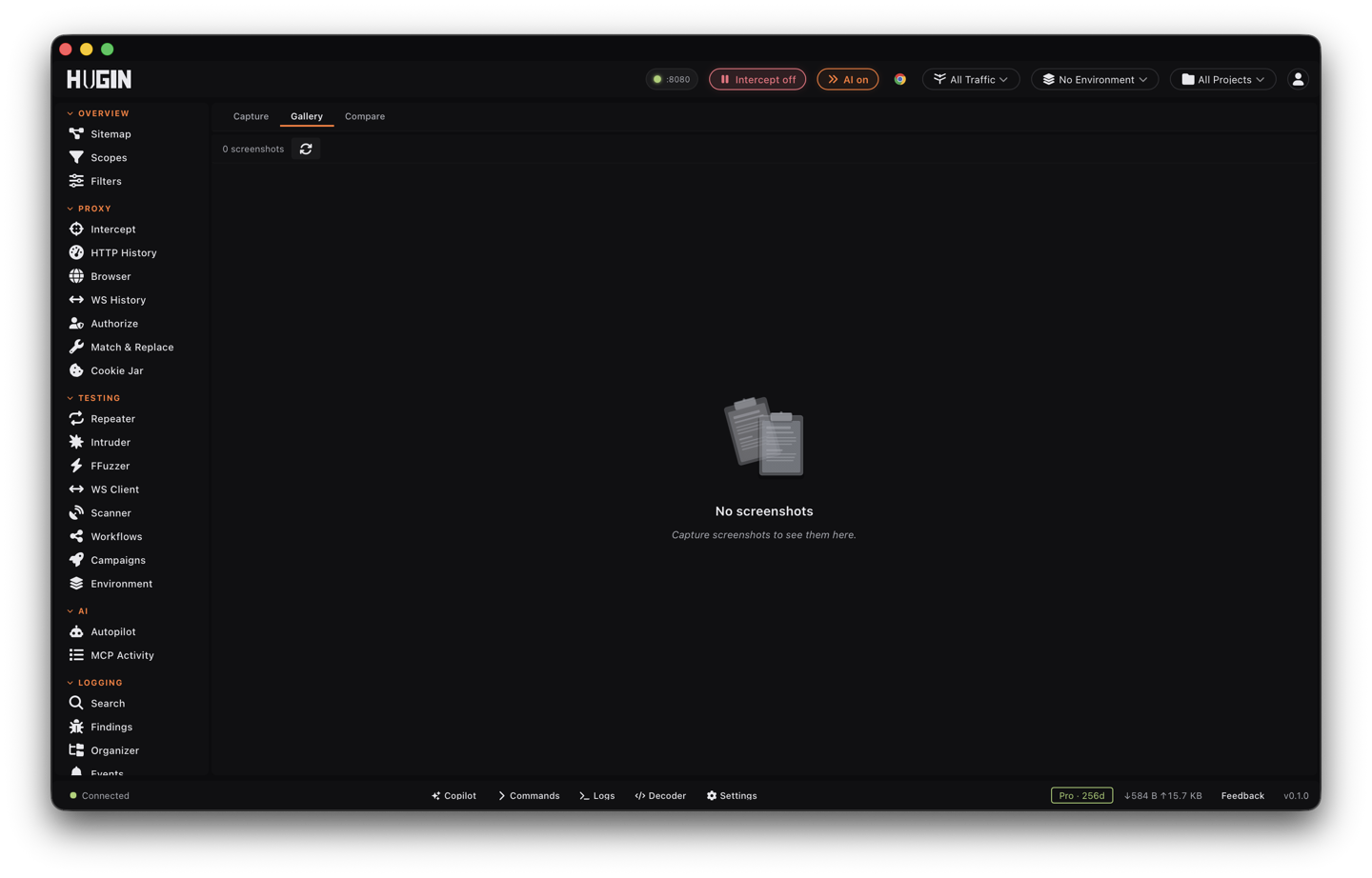
The Gallery tab lists every capture newest-first in a grid, with its filename, size, and timestamp — PNG screenshots and any MP4 recordings alike. Select one for the full-size view and its metadata, then set it as the left or right side of a comparison.
The Compare tab puts two captures side by side: before and after a payload, mobile versus desktop, or an unauthenticated versus authenticated view of the same URL when you're chasing an access-control bug.
Drive it from an agent
Over MCP, the screenshot tool does more than the buttons expose. Point it at a captured flow and it reopens that flow's URL with the flow's own cookies replayed — instant proof for the exact request you flagged. It can also record the screen to an MP4 for a moving proof-of-concept; recordings land in the same gallery with an MP4 badge.
Working from a list of hosts? Pull targets from the Sitemap or run the Crawler, then screenshot the ones worth a second look.
Capture as you go. The moment a payload fires is cheap to screenshot now and expensive to reproduce three days later, after the target has patched.