Wordlists
Save a named wordlist once and reuse it everywhere — built-in and custom lists for Intruder, FFuzzer, and Discover, with dedup, merge, and a copyable reference token.
Wordlists is where you save a named list once and reuse it across every tool that fires payloads at a target — no re-pasting, no hunting for the right file on disk. It ships in the free Community tier. Lists are plain text, one entry per line, stored under ~/.hugin/wordlists/, with a sidecar that tracks each list's category and description.
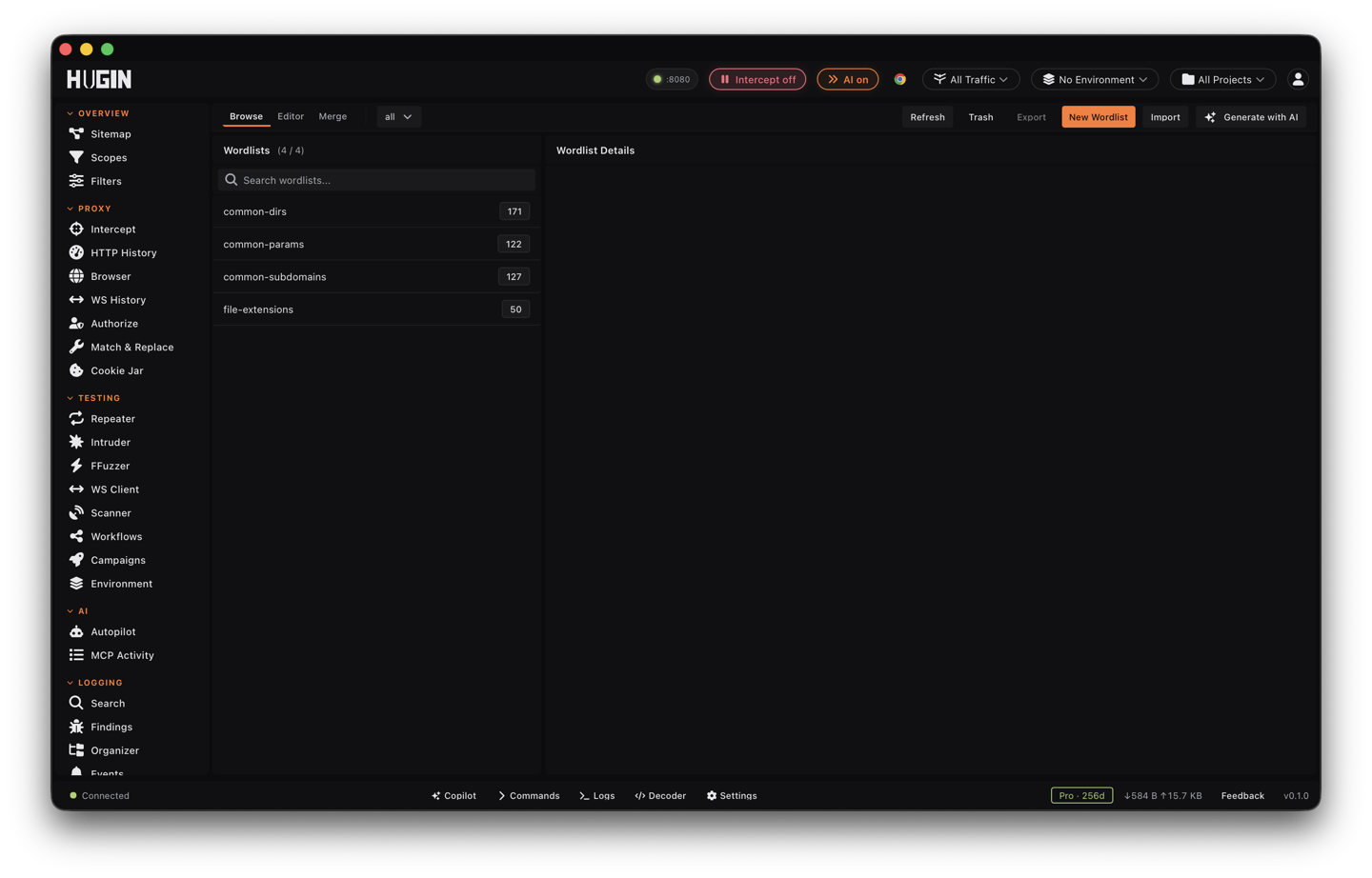
The view has three tabs: Browse is the library, grouped by category; Editor edits one list; Merge combines several into one.
Built-in lists
Hugin ships four curated lists (CC0), read-only, ready to use or to base your own on:
Common web directories and files — admin panels, API paths, debug endpoints, config and backup files.
Common HTTP parameter names, for parameter mining and mass-assignment probing.
Common subdomain prefixes for host and virtual-host discovery.
Common web file extensions, to cross-product against a directory list.
Make your own
Type or paste in the Editor
Open the Editor tab, hit New Wordlist, paste your entries one per line, give it a Name and a Category, then Save. Save As forks the current list under a new name.
Import from the Files library
Import pulls lists straight from the Files library. Hugin reads
.txtand.gz— gzip is unpacked inline, so a raw SecLists.gzdrops in as-is..zst,.bz2, and.xzare refused.Drop a file in
Copy any
.txtinto~/.hugin/wordlists/and it shows up as a saved list.Generate with AI (Pro)
Generate with AI drafts a list from a one-line description — "Common API paths for Node.js Express apps", "Subdomains for financial services" — and lands about 200 entries in the Editor to review and save.
Clean up a list
The Editor cleans a list before you fire it: Clean strips blank lines and stray whitespace, Sort orders it, and Dedup drops repeats. The Merge tab combines several saved lists into one, de-duplicated — build a project list out of three SecLists files without leaving Hugin.
Reuse it everywhere
A saved list isn't locked to the view you made it in. Reference it from the tools that fire payloads:
Saved lists appear in Discover's wordlist picker as custom:<name>. Hit Refresh after saving a new one.
In Intruder's Paired Lists generator, the Seed from wordlist picker appends a saved list's entries as the username or password column for credential stuffing.
Edit one list and every tool that points at it picks up the change on its next run. These saved lists are separate from FFuzzer's own engine wordlists (dirs, extensions, params, …) — both exist; this view is the one you edit and reuse across tools.
Limits and safety
Names cap at 64 characters, a list body at 256 MB, and any single line over 4 KB is truncated — a bad file can't pin the app. Hugin refuses symlinks and path-traversal names, and built-in lists are read-only.
Deleting a custom list moves it to a trash bin. Restore brings it back, Empty clears it, and anything older than 7 days is swept automatically.
Build a list once — your own params, a merged SecLists set, an AI-drafted seed — name it, and drive it from FFuzzer, Discover, Intruder, and campaigns by reference. Update the list and every run that points at it follows.