Copilot and Autopilot
Hugin's built-in AI — chat with the Copilot about a flow, or set Autopilot loose to explore an issue or assess a whole target (autonomous runs are Pro).
Hugin has AI built in, in two shapes. The Copilot is a chat that reads your captured traffic, explains what a flow is doing, and drafts the payload to try next. Autopilot takes a goal and drives Hugin's own tools to run the test end to end — the same tools an external agent over MCP uses, but the model runs inside Hugin instead of in a separate tool you connect. Both stop and ask before they send.
You bring the model. Pick a provider in Settings → AI — Anthropic, OpenAI, Google, OpenRouter, a free OpenCode Zen tier, a local model through Ollama, or any OpenAI-compatible endpoint — and paste your own key before any of this responds. See AI setup. The Copilot chat runs as soon as a provider is set; Autopilot's Explore and Auto runs need Pro.
Where the AI lives
Open it with the Copilot button in the status bar or Cmd/Ctrl+J. It knows which view you're on, so answers are about what's in front of you. Ask it for hands-off work and it offers to engage Autopilot — on your approval.
Give it a goal and a budget; it works the issue step by step, calling tools and pausing for your approval before it sends.
Point it at one target and it works the whole thing in phases, from recon to a deep dive.
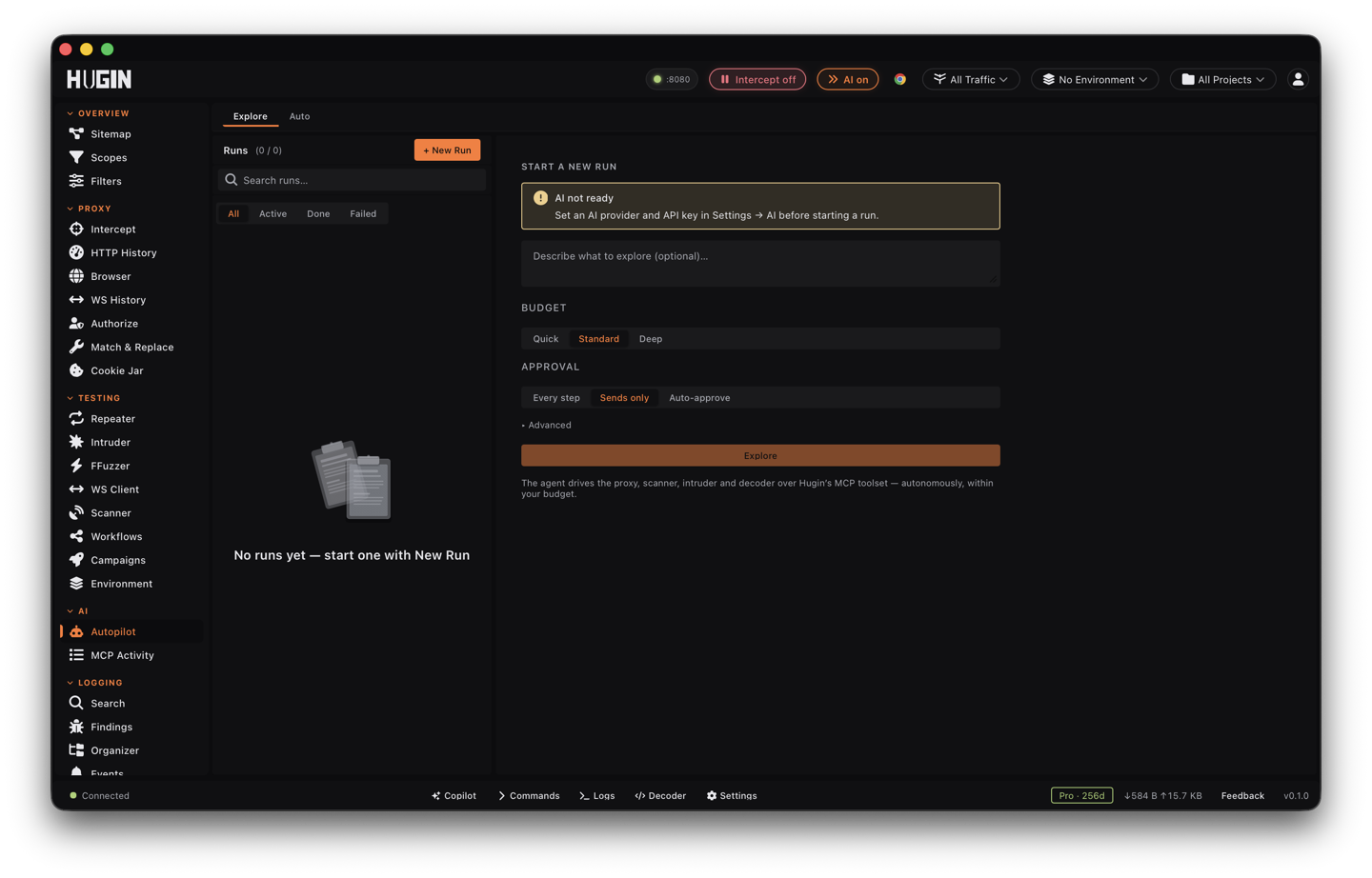
Autopilot is one view in the AI group with 2 tabs — Explore and Auto. The chat lives in the Copilot panel, not a tab; finished runs fold into the Explore tab's list under the Done and Failed filters.
Chat with the Copilot
Open the Copilot panel and type. The reply streams back. It pulls in context so you're not pasting walls of text:
Select a flow in History, then ask why it 403s — the request and response ride along as reference.
Attach a finding to have it triage the bug or draft a write-up; it gets the title, severity, CWE, and evidence.
Drop in a HAR snippet, a token, or a test plan and ask about it.
Conversations are saved under ~/.hugin/chats/, so a chat survives a restart. Ask the Copilot for hands-off work — "hunt for access-control bugs on staging" — and it won't run off on its own: it offers to engage Autopilot, and starts the run only once you approve.
Explore: a scoped autonomous run
The Explore tab turns a goal into a run. Hit New Run, describe what to look at (optional), choose a budget, and start.
- Budget — pick Quick, Standard, or Deep. Each sets 4 caps: max steps, max requests, max tokens, and max cost in dollars. Open Advanced to set any of them by hand.
- Approval policy — how much rope Autopilot gets:
- Every step — approve each tool call before it runs.
- Send only — it reads and reasons freely, but stops before anything that sends a request.
- Auto-approve — it runs unattended inside the budget.
- Step log — each step shows the tool it called and what came back. Pause, resume, or cancel any time; reject a step with a reason and it adapts.
Autopilot files a finding only when it has concrete proof of exploitation — a working demonstration, not a tool that merely returned vulnerable: true. The run list searches by task and filters by All, Active, Done, or Failed; re-run a finished one from its detail pane.
Auto: assess a whole target
The Auto tab points Autopilot at one target and works it in 4 phases:
- Recon — map the attack surface from the sitemap and captured traffic. No requests sent.
- Passive — review captured traffic for missing headers, leaky responses, weak cookies, CORS slips.
- Active — send tests against the endpoints it flagged.
- Deep dive — chase the strongest leads.
Hit New Assessment, enter a target, set the step and budget caps, and start. The list shows each assessment's phase and how many findings it has raised.
What it can drive
Copilot and Autopilot call Hugin's tools through the same surface an external agent uses — read and search flows, replay through Repeater, run the Scanner, fuzz with Intruder, decode values, and (on Pro) drive the browser. Which tools they can reach follows your licence, exactly as in the MCP overview. Every call is logged in MCP activity, so you can see what ran, with what arguments, and what came back.
You supply the model and the key — Hugin ships neither and runs no cloud of its own. With a cloud provider (Anthropic, OpenAI, Google, OpenRouter), your prompts and the flow context you attach go to that provider's API; a local Ollama model keeps everything on your machine. Autopilot's Explore and Auto runs require Pro. See AI setup.